If you're having trouble updating your trip dates, check that no plans fall outside the date range you're trying to set. Once you've updated the date for your plan, you'll be able to update the trip's start or end date.
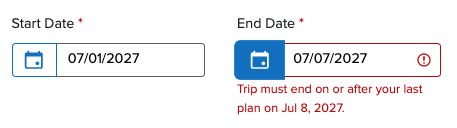
Step 1: Update the date for your plan.
- Click the Actions button (located to the right of plan you need to update).
- Select Edit Plan.
- Update the date for the plan.
- Click Save.
Step 2: Update the trip dates.
- Click Edit Trip Info (located below the trip name).
- Update the trip's start and/or end date.
- Click Save.
TripIt app:
Step 1: Update the date for your plan.
- Tap the plan you wish to edit.
- Tap the 3 dots (top right of screen).
- Select Edit Details.
- Update the dates for the plan.
- Tap Save.
Step 2: Update the trip dates.
- Tap the 3 dots (top right of screen).
- Select Edit Details.
- Update the trip's start and/or end date.
- Tap Save.
Was this article helpful?
That’s Great!
Thank you for your feedback
Sorry! We couldn't be helpful
Thank you for your feedback
Feedback sent
We appreciate your effort and will try to fix the article